How do I reset my progress?
In Settings, tap Reset Progress under Exam, then read the confirmation before you confirm. The app's FAQ says a reset can't be undone.
Updated · iOS and Android
To start fresh, reset your progress in the app's Settings.
-
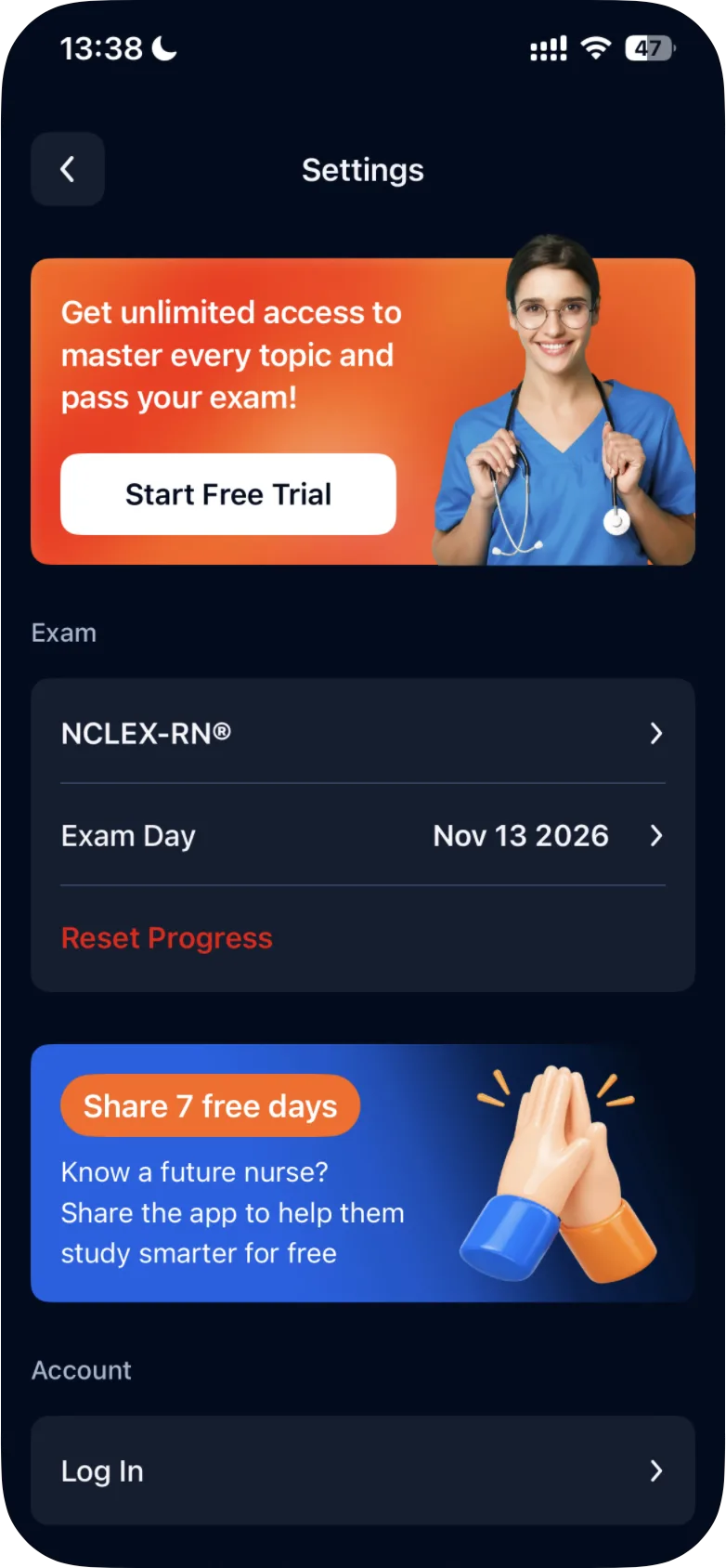
On the Study tab, tap the gear icon at the top right to open Settings.
-
Under Exam, tap Reset Progress (in red). The first row of this group shows your current exam, for example NCLEX-RN®.
-
Read the confirmation, then confirm your choice.
What a reset affects
Go by what the confirmation in the app says.
Android
In the Android app, the confirmation reads:
Reset Progress? "Are you sure about removing all progress and history for this exam? This action cannot be undone." with the buttons Reset Progress and Cancel.
After you tap Reset Progress, the app shows Done: "Removal is successful". Stats and Review for the exam start from zero.
If you're unsure what a reset will remove, ask us before you confirm: see how to contact support from the app.
Want to study the other exam? You don't need a reset for that: see how to switch between NCLEX-RN and NCLEX-PN. Your progress for each exam is kept separately, so you can switch back and pick up where you left off: see what happens to your progress when you switch.
Was this helpful?
Related questions
- Account & SettingsHow do I switch from NCLEX-RN to NCLEX-PN (or back)?To switch, open Settings (the gear on the Study tab), tap your current exam under Exam, select NCLEX-RN or NCLEX-PN and tap Confirm.
- TroubleshootingHow do I contact support from the app?In Settings, tap Support & Contact Us for the contact form or Submit a Complaint to write an email. You can also write to support@examready.pro.