How do I download ExamReady and start preparing?
Get the NCLEX app from the App Store or Google Play, answer a few setup questions, close the subscription offer if you don't want it yet, and take a Quick 10.
Updated · iOS and Android
The first time you open the NCLEX app, a short setup asks about your exam and how you want to study. Then the app shows a subscription offer, which you can close, and you can start with a quick quiz. You don't need an account to start.
Get the app
iOS
On your iPhone, open the NCLEX app's page on the App Store, download the app and open it.
Set up the app
On the welcome screen, tap Get Started. The welcome screen also has Log In: I've done the quiz, for signing in with your email.
Android
Before the questions, the Android app shows Join millions of happy students: tap Continue. Google Play may then ask you to rate the app. Tap Not now to go on with the setup.
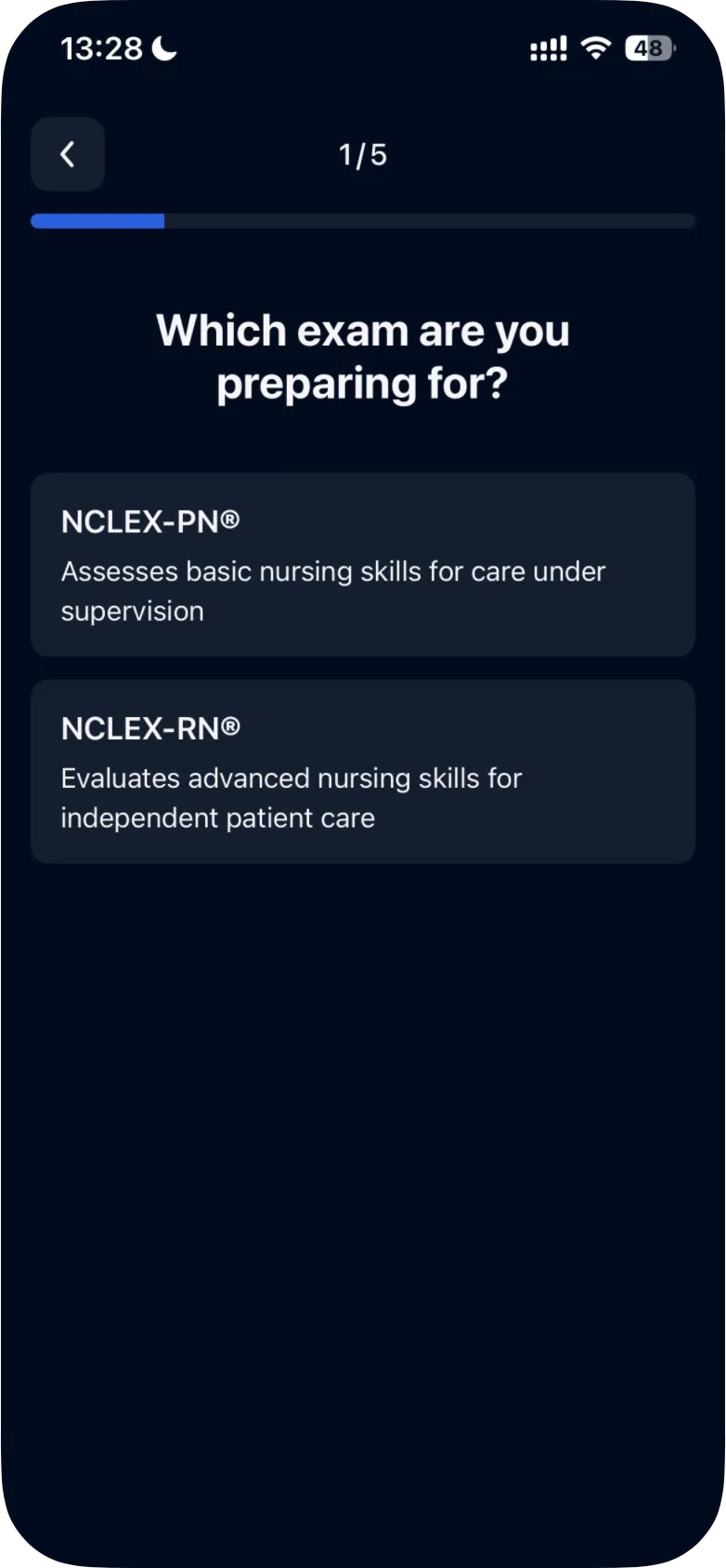
Five questions follow, numbered 1/5 to 5/5 at the top of the screen:
- Which exam are you preparing for? Tap NCLEX-PN® or NCLEX-RN®. You can switch later in the app's Settings: see how to switch between NCLEX-RN and NCLEX-PN. Not sure which exam is yours? See NCLEX-RN or NCLEX-PN: which exam should I prepare for?
- When is your exam day? Turn the wheel to your exam date and tap Continue; Skip is below it. On iPhone you choose the month; on Android, the month, day and year. The date you choose appears in Settings as Exam Day.
- Where do you need to improve the most? Tick the topics you want to work on and tap Continue.
- How much time can you spend preparing? Tap an option, from Easy (5 min daily) to Intensive (20+ min daily). The app moves on as soon as you tap.
- When do you want to study? Tap an option, such as After work or Anytime.
To practice one particular topic later, use Quiz Modes by Topic on the Study tab: see how to practice questions by topic.
Next, Stay on track offers study reminders.
iOS
Tap Remind Me or Maybe Later. With Maybe Later, the app moves on without asking to send you notifications.
The app's Settings also has an Allow Reminders switch. For notifications, see how to turn notifications on or off.
The app then shows your study plan. Tap Start Now.
Close the subscription offer
iOS
Two screens about a free trial come next. Claim Offer on the first and Continue on the second don't ask you to pay: they lead to the subscription screen, which lists the plans (see what is included in Premium).
If you don't want to subscribe now, close that screen with the × in its top-left corner, over the photo. The × isn't there right away: it appears about 5 seconds after the subscription screen opens.
You can open the subscription screen again later from the Free Trial tab or a Start Free Trial banner.
Take your first quiz
After you close the subscription screen, you're on the Study tab. Tap Take a Quick 10 Quiz near the top to start a quiz of 10 questions.
iOS
The first time, the subscription screen opens once more before the quiz: close it with the × in the same way, and the quiz begins.
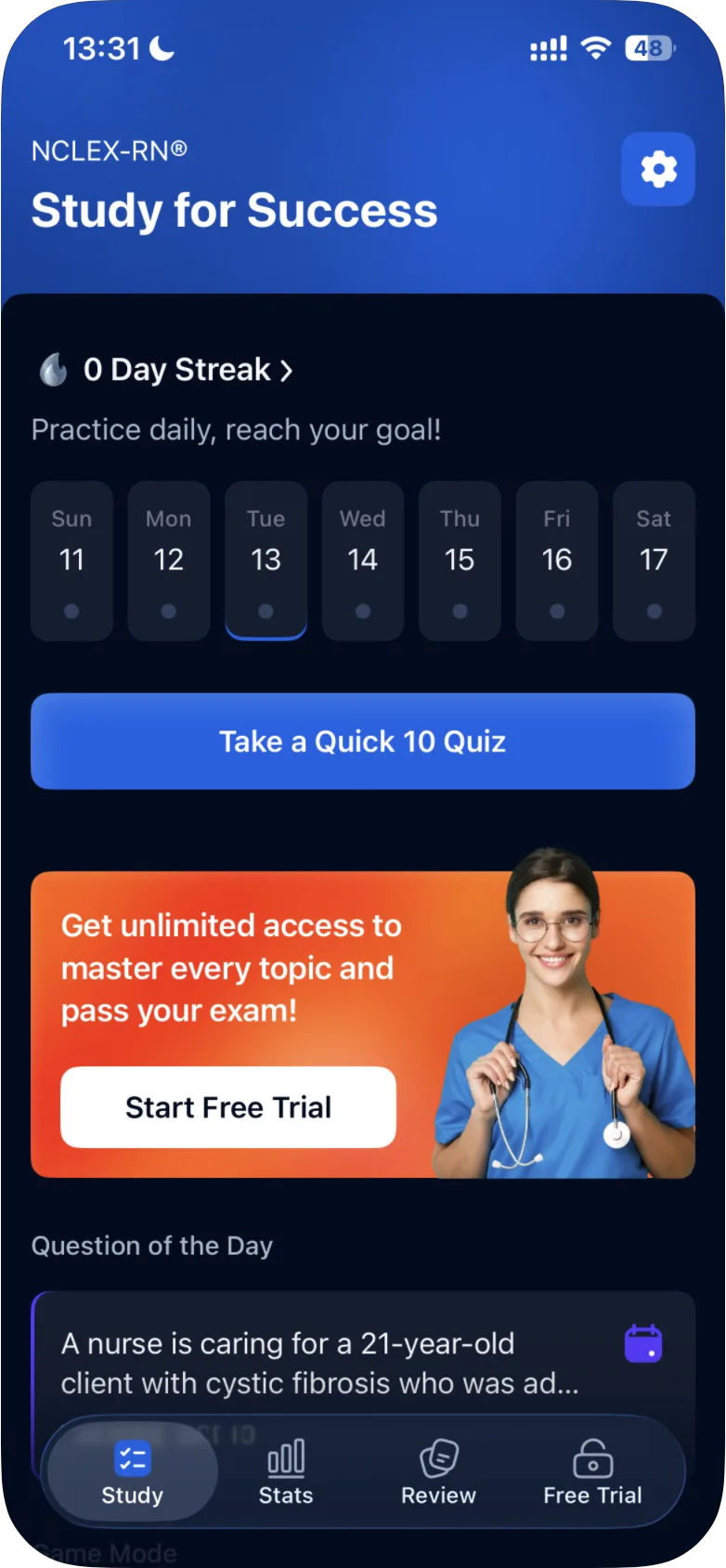
How to answer, check your answers and read your results: see how to take a practice quiz. Without a subscription, a Free Questions bar shows how many free questions you have left: see what is available for free.
To find your way around the rest of the app, see how to use the ExamReady app. For the other ways to practice, see what quiz modes are available.
Was this helpful?
Related questions
- Quizzes & Study ModesHow do I take a practice quiz?Tap Take a Quick 10 Quiz on the Study tab, choose an answer, tap Continue to check it, read the explanation and tap Next Question. Results come at the end.
- Getting StartedHow do I use the ExamReady app?A tour of the NCLEX app: Study for practice, Stats for your progress, Review for quiz questions you've answered, Free Trial for plans, and Settings.
- Subscription & BillingWhat is available for free?Without a subscription you can try 10 quiz questions, and case studies have their own counter of 3. What the app shows when your free questions run out.
- Getting StartedNCLEX-RN or NCLEX-PN: which exam should I prepare for?The NCLEX-RN is the licensure exam for registered nurses, the NCLEX-PN for practical/vocational nurses. Your nursing regulatory body decides eligibility.