How do I take a practice quiz?
Tap Take a Quick 10 Quiz on the Study tab, choose an answer, tap Continue to check it, read the explanation and tap Next Question. Results come at the end.
Updated · iOS and Android
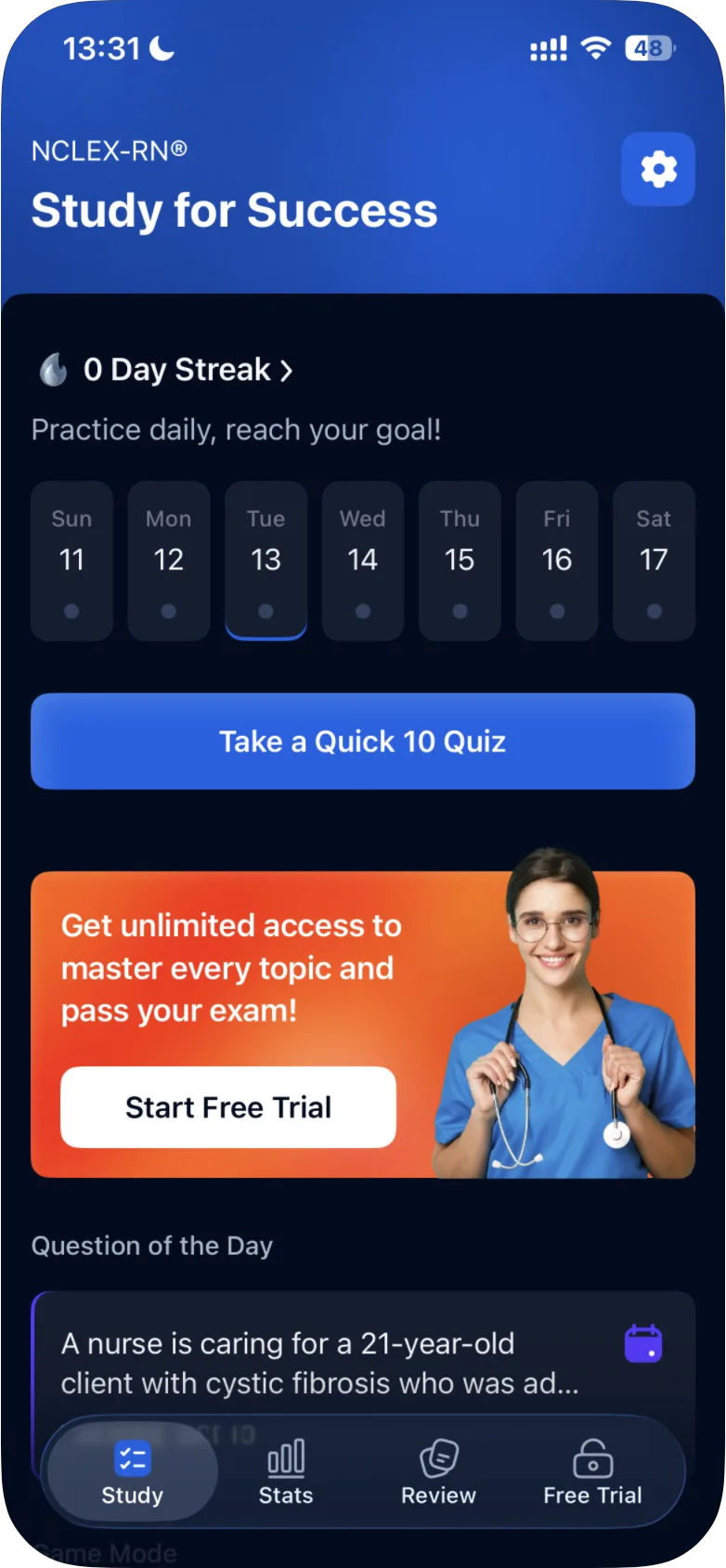
The quickest way to practice is the Quick 10, a quiz of ten questions at the top of the Study tab.
Start the quiz
- Open the Study tab, the first tab at the bottom of the app.
- Tap Take a Quick 10 Quiz.
iOS
Without a subscription, the first time you tap it, the subscription screen opens before the quiz. Close it with the × in its top-left corner, which appears after about 5 seconds, and the quiz begins.
Answer a question
The header counts the questions: Quick 10 1/10, Quick 10 2/10 and so on. Above each question you see a difficulty label, such as Easy or Medium, and the question's topic.
- Tap an answer. When the question says Select all that apply, tap every option you choose: see how to answer single choice and select all that apply questions.
- Tap Continue to check your answer.
- The app marks the correct answer with a check. If you chose a wrong answer, it is outlined in red with a cross.
- Read the Explanation: below the options.
- Tap Next Question.
Next to Next Question is a bookmark button that saves the question for later: see how to save questions and practice them later. If something about a question looks wrong, tap the flag in the top-right corner: see how to report a problem with a question.
iOS
In the iPhone app, on the 10th question the button after your answer is Submit Quiz instead of Next Question. Tapping it ends the quiz and opens the results straight away, with no confirmation.
Your results
When the quiz ends, or when you tap Submit Quiz, you see Quick 10 Results:
- Correct and Incorrect: how many of your answers were right and wrong, for example 7 / 10 and 3 / 10;
- a ring with your percentage of correct answers;
- Review Questions, with the tabs All, Saved, Incorrect and Correct. The questions you answered are listed with their topic and a check mark or a cross.
More: see how to read your quiz results.
Only the questions you answered count. A question you didn't answer is not counted as answered. To leave a quiz before the end, see how to exit, submit or continue a quiz.
Close the results with the × in the top-left corner. The app may then show your day streak, such as 1 Day Streak: tap I'm Committed to go back to the Study tab. It may also ask you to rate or share the app; each of those screens has an × that closes it.
Other quizzes
Random Mix and the other quiz modes work the same way: tap an answer, Continue, then Next Question. See what quiz modes are available. Case studies are scored differently, with points: see how case studies work.
Was this helpful?
Related questions
- Quizzes & Study ModesHow do I answer single-choice and SATA questions?Tap one answer, or every option you choose when a question says Select all that apply, then tap Continue to see the correct answer and the explanation.
- Quizzes & Study ModesHow do I exit, submit or continue a quiz?Tap × during a quiz. Submit Quiz ends it with a result for the questions you answered, Quit Quiz Without Saving leaves, Continue Quiz goes on.
- Quizzes & Study ModesHow do I read my quiz results?The results screen shows how many answers were correct and incorrect, the share of correct answers as a percentage, and the questions to review.
- Quizzes & Study ModesHow do I save questions and practice them later?After you answer a question, tap the bookmark next to Next Question. Saved questions appear under Saved on the Review tab and in the Saved Questions Quiz.
- Quizzes & Study ModesWhat quiz modes are available in ExamReady?The Quick 10, Question of the Day, Game Mode, case studies and four quiz modes (Random Mix, Missed, Saved, Mastered), for all topics or one topic.