Where do I find a section or feature in ExamReady?
Where to find things in the NCLEX app: quiz modes, topics, case studies, cheat sheets, saved and missed questions, stats, settings and support.
Updated · iOS and Android
The NCLEX app has four tabs at the bottom of the screen (Study, Stats, Review and Free Trial; on iPhone with Premium, only the first three), and Settings opens from the gear in the top-right corner of the Study tab. For what each tab is for, see how to use the ExamReady app.
Practice
| What you're looking for | Where it is |
|---|---|
| A quick quiz | Study › Take a Quick 10 Quiz, near the top. See how to take a practice quiz |
| Question of the Day | Study, scroll down to Question of the Day |
| Game Mode | Study › Game Mode › Play Now |
| Case studies | Study › Case Studies: swipe the cards, or tap See All for the full list. See how case studies work |
| Random Mix, Missed, Saved and Mastered quizzes | Study › Quiz Modes. See what quiz modes are available |
| A quiz on one topic | Study › Quiz Modes by Topic › See All, then the topic. See how to practice questions by topic |
| Cheat sheets | Study › Cheat Sheets › See All. See how to find and use cheat sheets |
Your questions and progress
| What you're looking for | Where it is |
|---|---|
| Quiz questions you've answered | Review |
| Questions you got wrong | Review › Incorrect. The Missed Questions Quiz ("Master your mistakes") is under Study › Quiz Modes |
| Saved questions | Review › Saved. To practice them: Study › Quiz Modes › Saved Questions Quiz. See how to save questions |
| Mastered questions | Study › Quiz Modes › Mastered Questions Quiz |
| The explanation of an answer | Review › tap the question |
| A particular question | Review › the search box, or Filter to pick topics |
| The results of a quiz | They open when you finish or submit the quiz. See how to read your quiz results and how to exit, submit or continue a quiz |
| The score of a case study | Study › Case Studies: the case study's card. See how to review and retake a case study |
| Readiness Score, answered and correct questions | Stats. See what the Readiness Score is and how to track your progress |
| Results for each topic | Stats, scroll down to Performance by Topic |
| Your streak | Study, at the top. Longest Streak is on Stats |
| Reporting a problem with a question | The flag in the top-right corner, above the question › Report an Issue. See how to report a problem with a question |
Settings and help
| What you're looking for | Where it is |
|---|---|
| Switching between NCLEX-RN and NCLEX-PN | Settings › your exam, the first row under Exam. See how to switch between NCLEX-RN and NCLEX-PN and what happens to your progress when you switch |
| Your exam date | Settings › Exam Day |
| Resetting your progress | Settings › Reset Progress. A reset can't be undone: read how to reset your progress first |
| Signing in | Settings › Log In (on Android, Add Email). See how to log in or create an account |
| Reminders | Settings › Allow Reminders. See also how to turn notifications on or off |
| The app's theme | Settings › Theme |
| Subscription plans | The Free Trial tab, or a Start Free Trial banner. See what is available for free and what is included in Premium |
| Your plan and renewal date | Not in the app: Settings has no subscription row. See how to check your next billing date |
| Restoring a purchase | Settings › Restore Purchases, or Restore at the bottom of the subscription screen |
| Answers to common questions | Settings › FAQ |
| Contacting support | Settings › Support & Contact Us. See how to contact support from the app |
| Privacy Policy and Terms of Use | Settings, at the bottom |
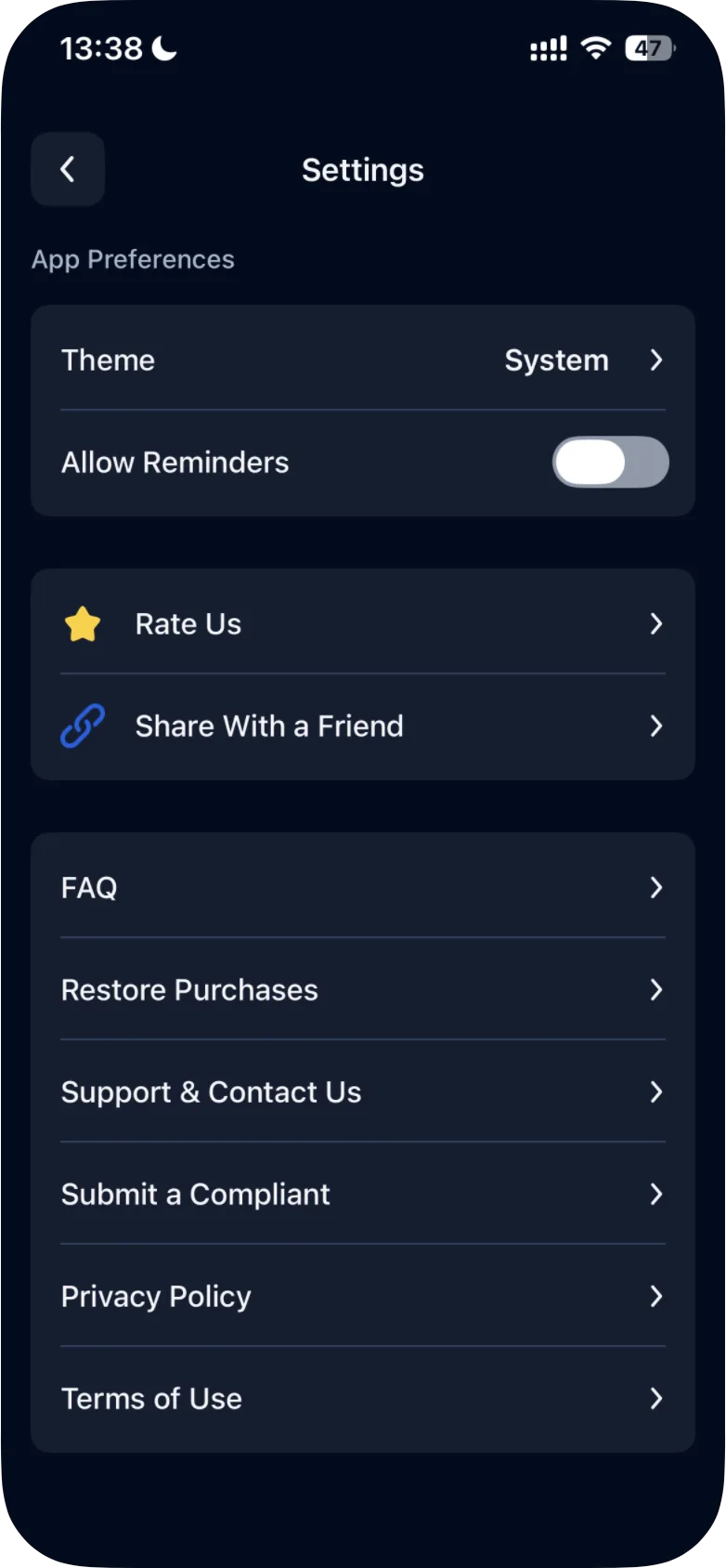
Support & Contact Us opens our contact page (inside the app on iPhone, in your browser on Android), with a contact form and our email address, support@examready.pro. What to put in your message: see how to contact ExamReady support. If a subscription you paid for doesn't show up, see how to restore a purchase.
Was this helpful?
Related questions
- Getting StartedHow do I use the ExamReady app?A tour of the NCLEX app: Study for practice, Stats for your progress, Review for quiz questions you've answered, Free Trial for plans, and Settings.
- Account & SettingsHow do I switch from NCLEX-RN to NCLEX-PN (or back)?To switch, open Settings (the gear on the Study tab), tap your current exam under Exam, select NCLEX-RN or NCLEX-PN and tap Confirm.
- TroubleshootingHow do I contact support from the app?In Settings, tap Support & Contact Us for the contact form or Submit a Complaint to write an email. You can also write to support@examready.pro.