How do I use the ExamReady app?
A tour of the NCLEX app: Study for practice, Stats for your progress, Review for quiz questions you've answered, Free Trial for plans, and Settings.
Updated · iOS and Android
The NCLEX app has four tabs at the bottom of the screen: Study, Stats, Review and Free Trial. On iPhone with Premium there are three: the Free Trial tab is gone. Settings opens from the gear in the top-right corner of the Study tab. The exam you're preparing for is shown at the top of the Study, Stats and Review tabs.
Study: practice
Study is where you practice. At the top:
- Your day streak (0 Day Streak at first), above the days of the current week. In the words of the app's FAQ, "the more days in a row you study, the longer your streak!"
- Take a Quick 10 Quiz: a quiz of 10 questions. Step by step: see how to take a practice quiz.
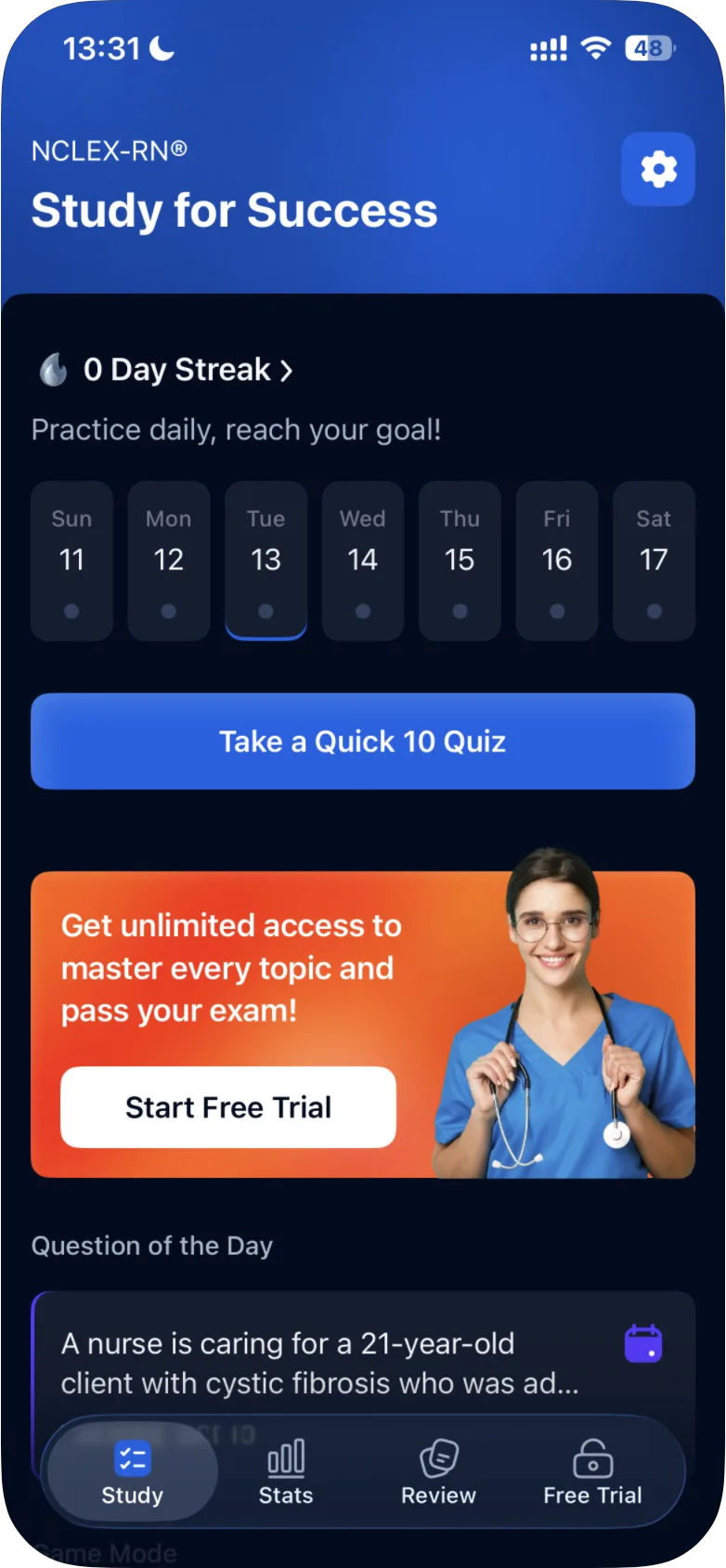
Scroll down for:
- Question of the Day: a card with the start of the day's question and its date.
- Game Mode: a challenge card, "How many questions can you get right?", with Play Now.
- Case Studies: client scenarios, each with its own set of questions. Swipe the cards, or tap See All for the full list. How they work: see how case studies work and how to review and retake a case study.
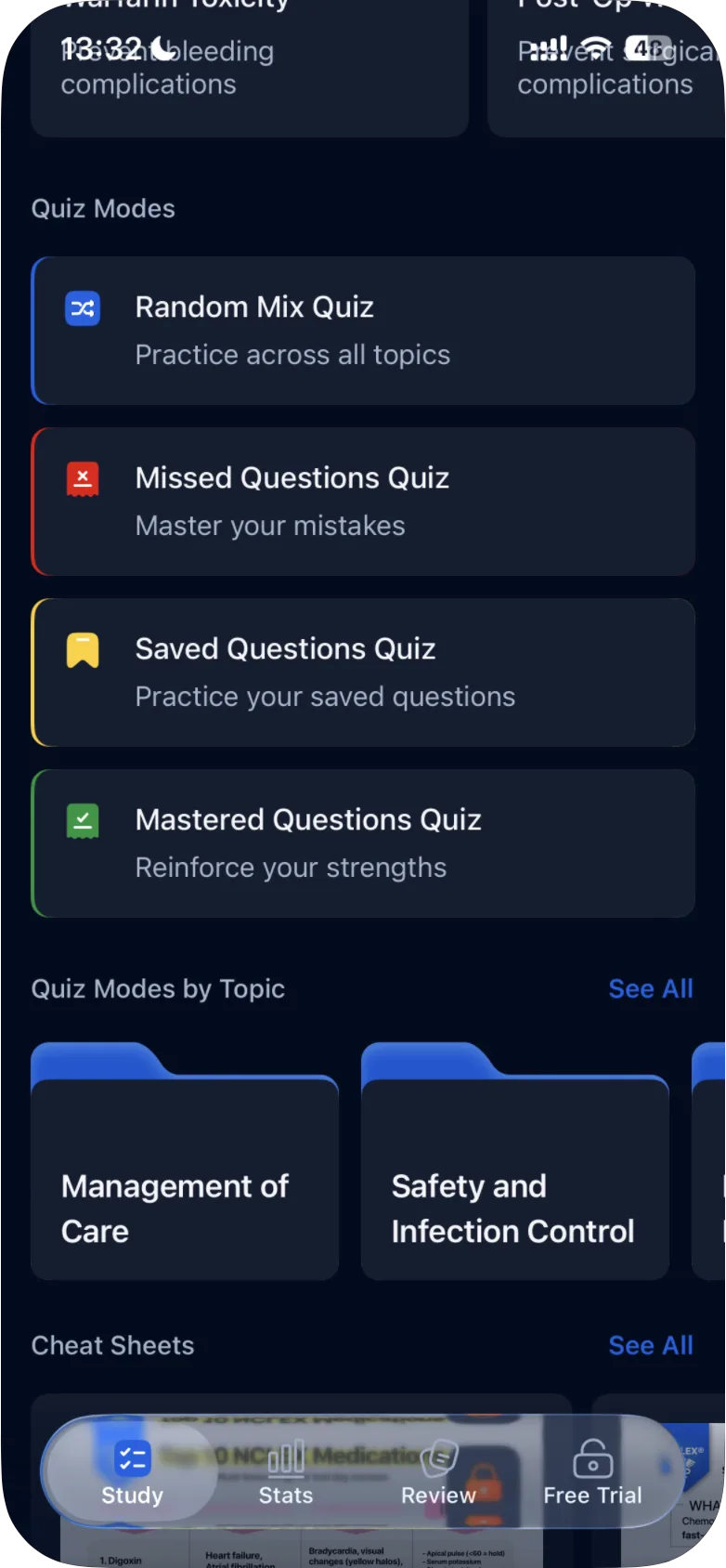
- Quiz Modes: Random Mix Quiz, Missed Questions Quiz, Saved Questions Quiz and Mastered Questions Quiz.
- Quiz Modes by Topic: topic folders. See All lists all eight topics; open one to see the same four quiz modes for that topic. See how to practice questions by topic.
- Cheat Sheets: tap See All for the full list.
What each quiz is for: see what quiz modes are available.
Stats: your progress
Stats shows your progress for the exam you're preparing for:
- Readiness Score, which the app describes as "A smart, data-driven score based on your practice performance".
- All Answered Questions and All Correct Answers.
- Longest Streak.
- Performance by Topic, further down: Readiness Score, Answered Questions and Correct Answers for each topic.
The app's FAQ sums it up: "Track accuracy across exam categories, see your strengths, and identify areas for improvement." More: see how to track your progress and what the Readiness Score is.
Switching between NCLEX-RN and NCLEX-PN? Your progress for each exam is kept separately, so you can switch back and pick up where you left off: see what happens to your progress when you switch.
Review: questions you've answered
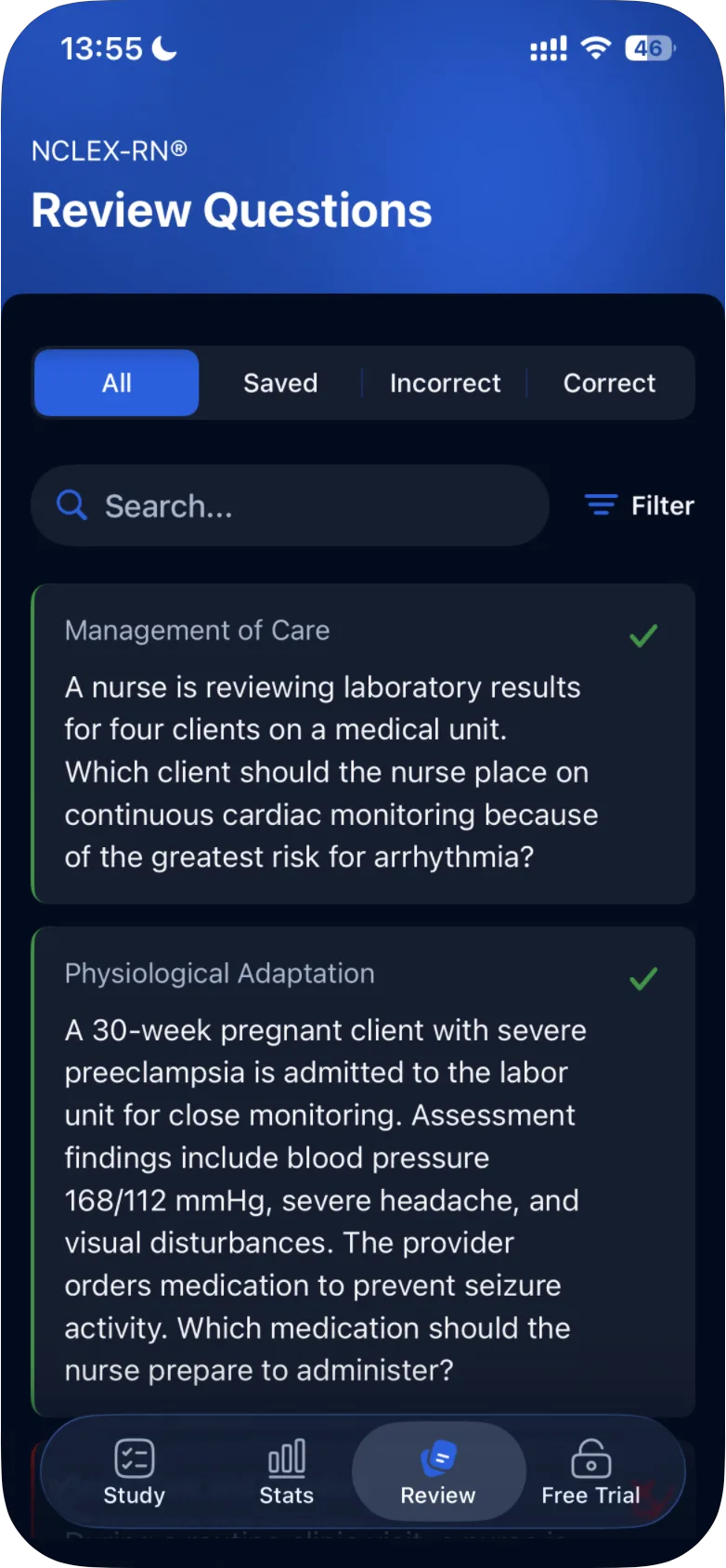
Review lists the quiz questions you've answered, each with its topic and a check mark or a cross. On iPhone its title is Review Questions.
- Tabs at the top: All, Saved, Incorrect and Correct.
- Use the search box to look for a question, or Filter to tick topics and Apply Filters.
- Tap a question to see it again, with the correct answer marked and the explanation.
More: see how to review questions you've answered. Think a question or its answer is wrong? See how to report a problem with a question.
Free Trial: plans
Without a subscription, Free Trial opens the subscription screen with the plans. To close it, tap the × in its top-left corner. On iPhone it appears about 5 seconds after the screen opens; on Android, the back button closes the screen too. What the plans include: see what is included in Premium.
Settings
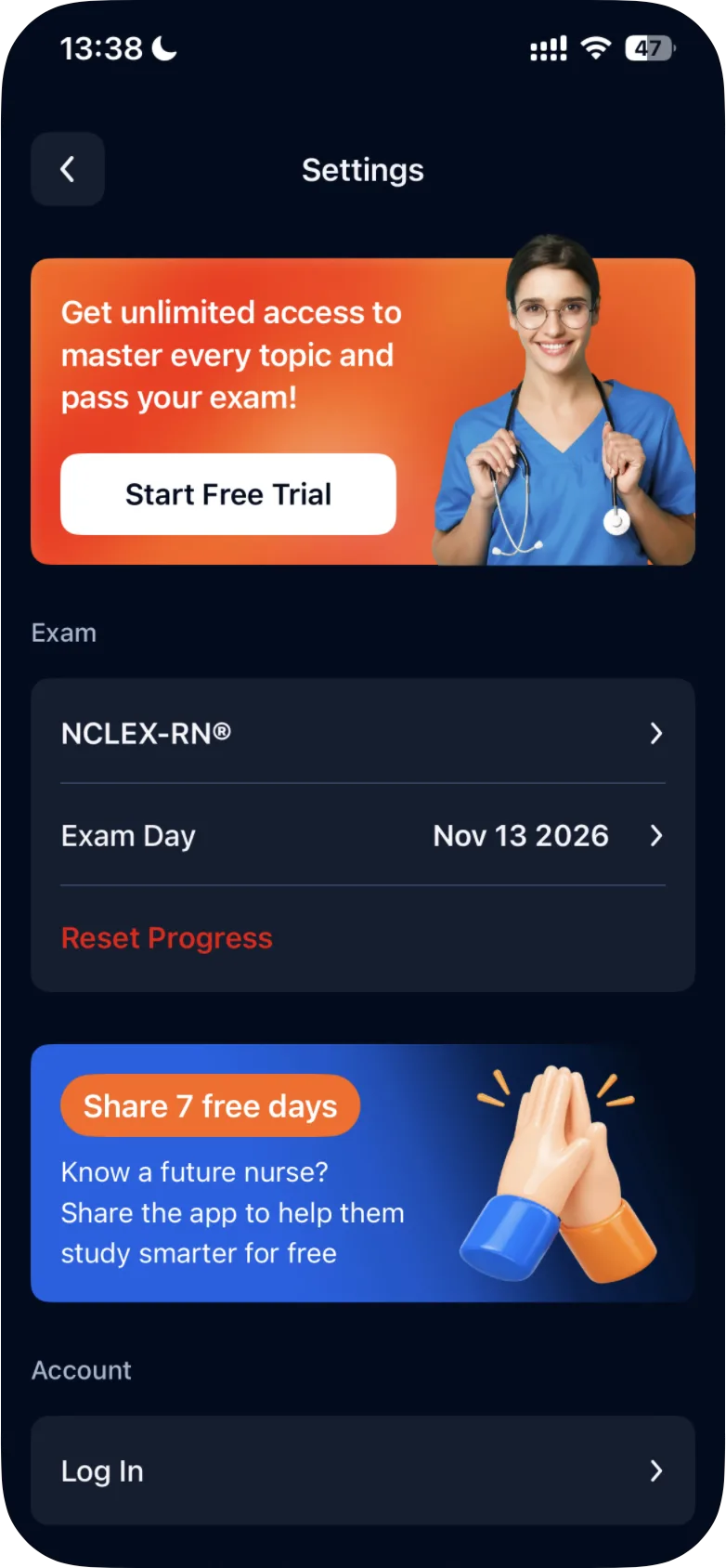
Tap the gear in the top-right corner of the Study tab. Settings has:
- Exam: your exam, Exam Day and Reset Progress. To change the exam, see how to switch between NCLEX-RN and NCLEX-PN. A reset can't be undone: read how to reset your progress first.
- Account: Log In on iPhone, Add Email on Android, to sign in with your email.
- App Preferences: Theme and Allow Reminders. For notifications, see how to turn notifications on or off.
- Further down, among other links: FAQ, the app's own answers to common questions, and Support & Contact Us, which opens our contact page.
Where to find your results
- A quiz: the results open when you submit the quiz, with your correct and incorrect answers and the questions under Review Questions. See how to read your quiz results.
- A case study: its card under Case Studies shows your score in points and as a percentage, for example 7/12 (58.33%). See how to review and retake a case study.
- All your quiz answers together: the Stats tab, and the Review tab for the questions themselves.
Where to start
If you're not sure where to begin, start with what the app puts first: Take a Quick 10 Quiz, at the top of the Study tab.
Why the app is built around questions: see why ExamReady practice is built around quizzes. Looking for one particular thing? See where to find a section or feature.
Was this helpful?
Related questions
- Getting StartedWhere do I find a section or feature in ExamReady?Where to find things in the NCLEX app: quiz modes, topics, case studies, cheat sheets, saved and missed questions, stats, settings and support.
- Quizzes & Study ModesHow do I take a practice quiz?Tap Take a Quick 10 Quiz on the Study tab, choose an answer, tap Continue to check it, read the explanation and tap Next Question. Results come at the end.
- Quizzes & Study ModesWhat quiz modes are available in ExamReady?The Quick 10, Question of the Day, Game Mode, case studies and four quiz modes (Random Mix, Missed, Saved, Mastered), for all topics or one topic.
- Quizzes & Study ModesHow do I read my quiz results?The results screen shows how many answers were correct and incorrect, the share of correct answers as a percentage, and the questions to review.
- Subscription & BillingWhat is available for free?Without a subscription you can try 10 quiz questions, and case studies have their own counter of 3. What the app shows when your free questions run out.