How do NGN case studies work?
A case study is six questions about one client, with the patient's data in tabs. How to answer, read the exhibits and how +/- and 0/1 scoring work.
Updated · iOS and Android
A case study is a set of six questions about one client, in one scenario. The subscription screen calls them NGN case studies. With NCLEX-RN selected, the app has 20 of them, such as Warfarin Toxicity, Post-Fall Assessment and Acute Gastroenteritis.
Find a case study
On the Study tab, scroll to Case Studies. Each card shows the case study's title, a one-line goal (for Warfarin Toxicity, "Prevent bleeding complications") and your status: Not Started or your score. Swipe the cards sideways and tap one to start. See All opens the full list, All Case Studies.
Answer the questions
- The header counts the questions: Case Study 1/6, Case Study 2/6 and so on, up to six.
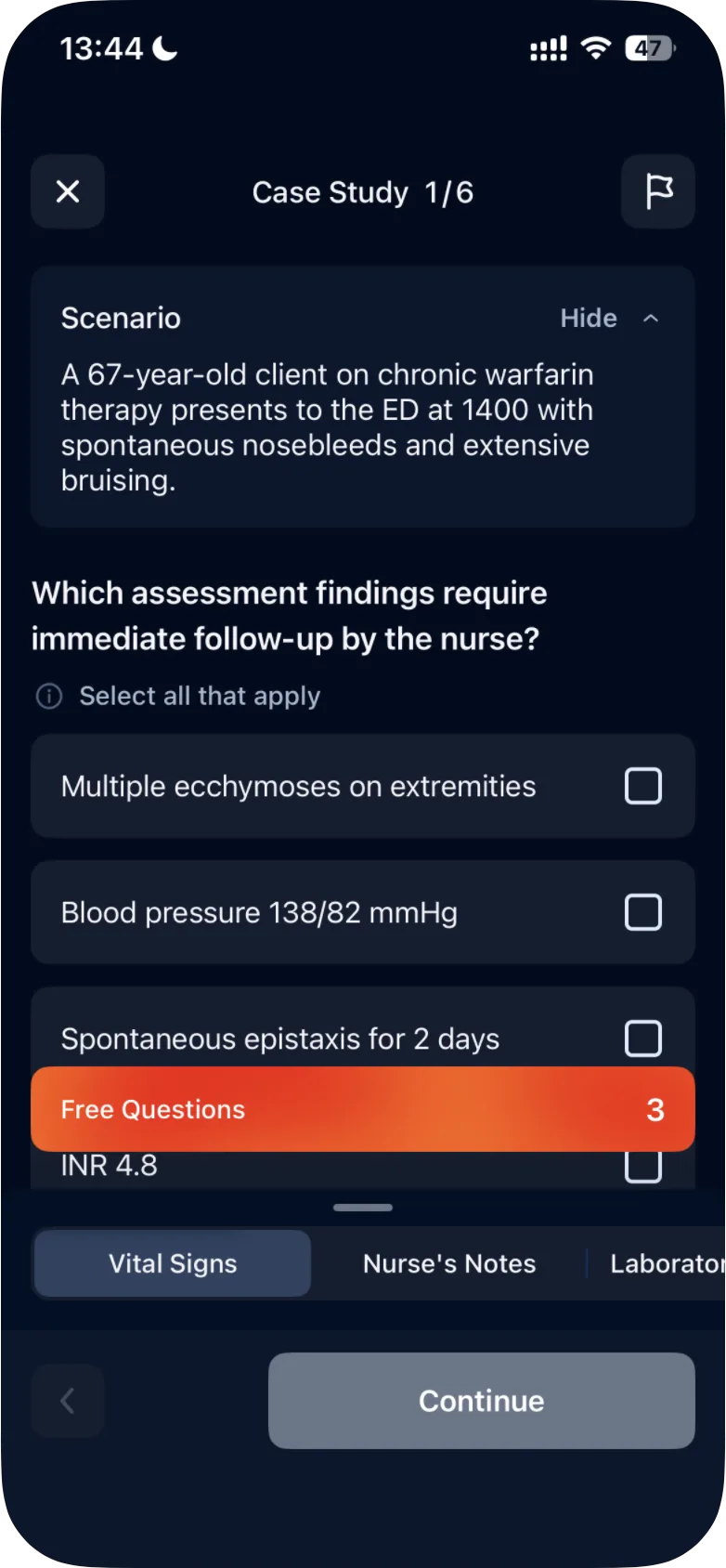
- The question is under the client's Scenario (see below). Some questions say Select all that apply: select every option you think is correct. Others have one correct answer.
- Choose your answer and tap Continue. You see the result, the points and an explanation; Next Question takes you on.
In the iPhone app, the button on the last question is Submit Case Study. Tap it to check your answer, then tap Submit Case Study again to open the results. In the Android app, you check the last answer with Continue as usual; the button then becomes Submit Case Study, which opens the results.
To leave a case study, tap × in the top-left corner. In the Android app, before you answer any question, Quit Case Study? opens ("You haven't answered any questions yet"), with Quit Case Study and Continue Case Study.
Use the patient information
Two places hold what you know about the client.
Scenario. The card at the top describes the client, for example: "A 67-year-old client on chronic warfarin therapy presents to the ED at 1400 with spontaneous nosebleeds and extensive bruising." Tap Hide to collapse it and get more room for the question; tap Show to open it again.
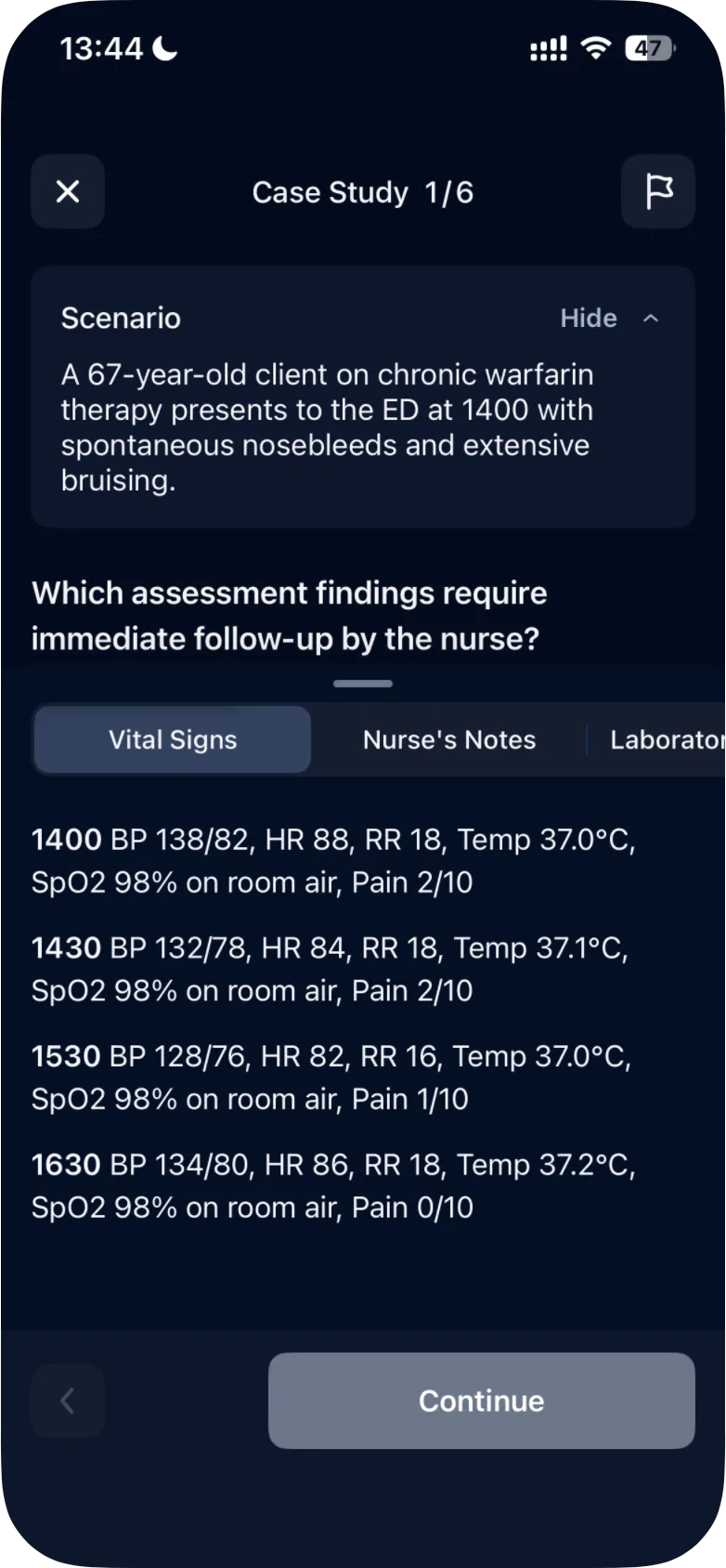
The exhibit tabs. At the bottom of the screen, a sheet holds the client's clinical data in tabs, such as Nurse's Notes, Vital Signs and Laboratory Results. Which tabs you see depends on the case study: Acute Gastroenteritis, for example, also has Provider Orders and History & Physical. When there are more tabs than fit, some are partly hidden at the right edge of the screen; scroll the row of tabs to reach them.
- Pull the sheet up to read the selected tab.
- Tap another tab to switch.
- Drag the sheet down by its handle to collapse it.
How scoring works
After Continue, you see a result, Correct, Partially Correct or Incorrect, and the Points scored for the question. Next to the points, a label names the scoring method. Tap it to read how the method works.
0/1 scoring is used for questions with one correct answer. The correct answer earns 1 point; any other answer earns 0. For example, Points scored: 1/1.
+/- scoring is used for Select all that apply questions. In the app's words: "You get points by selecting the correct options and lose points by choosing the incorrect options. In a particular question, the total point value is the sum of all right options selected minus the number of incorrect options selected. Your score cannot go below 0."
- Each correct option you select: +1.
- Each incorrect option you select: −1.
- The lowest score for a question is 0.
For example, on a question with three correct options:
| You select | Points scored | Result |
|---|---|---|
| Two correct options and nothing else | 2/3 | Partially Correct |
| One correct option and one incorrect option | 0/3 | Incorrect |
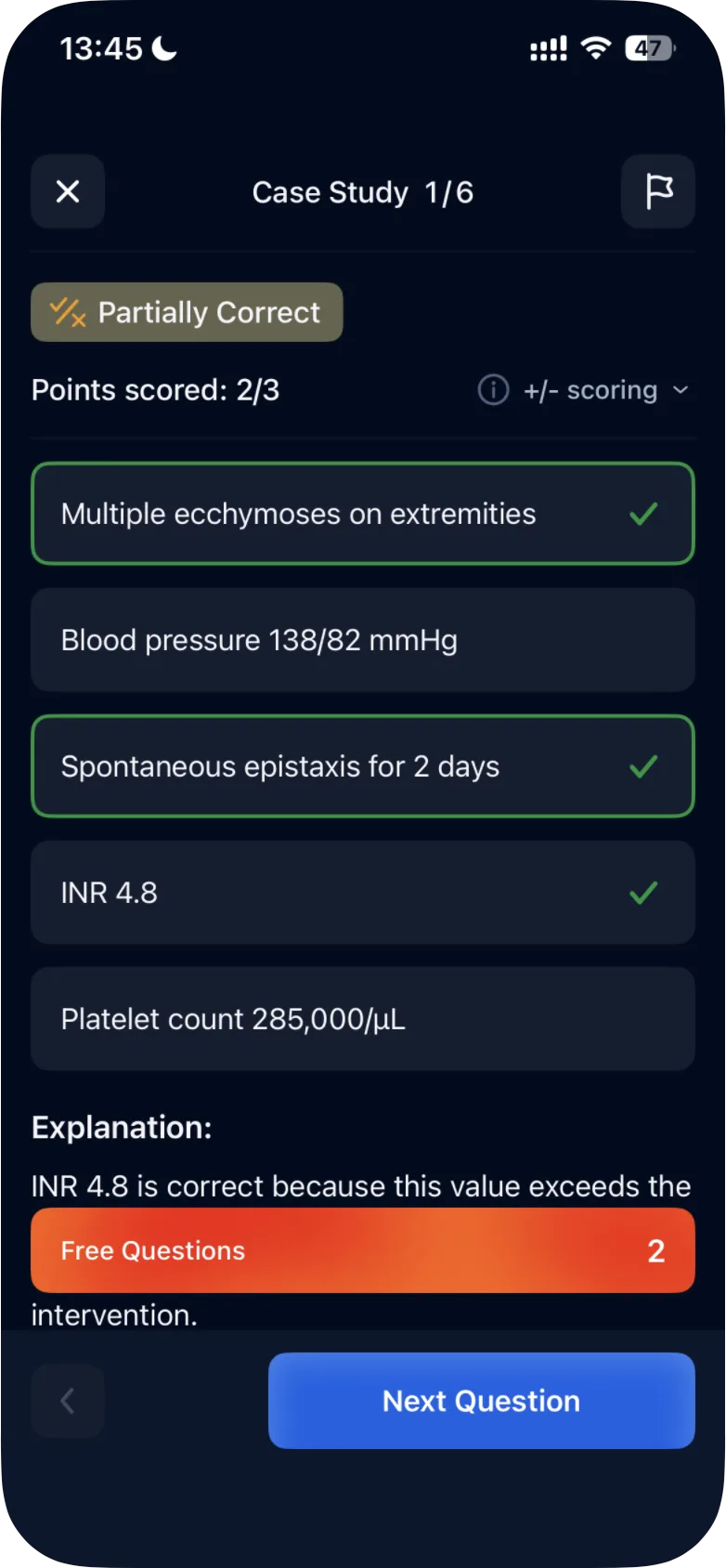
Partially Correct means you earned some of the question's points but not all of them.
The total for a case study is the sum of its questions' points, and the maximum depends on the case study. Post-Fall Assessment, for example, is out of 12 points: a result of 7/12 is shown as 58%.
The scoring labels use the names of partial-credit methods that NCSBN uses on the NCLEX. Our article NCLEX question types explained covers them and the item formats.
Results and free questions
The results screen shows your points, a percentage, a case summary and your answers: see how to review and retake a case study. Case study points are not part of the Stats tab: see why case study results don't appear in Stats.
Without a subscription you can try three questions of one case study: see how free access to case studies works.
For the other ways to practice on the Study tab, see what quiz modes are available.
Was this helpful?
Related questions
- Quizzes & Study ModesHow do I review and retake a case study?Case Study Results show your points, a case summary and your answers by All, Incorrect, Partial and Correct. A retake's new result replaces the old one.
- Quizzes & Study ModesHow does free access to case studies work?Without a subscription you can answer three questions in one case study. This limit is separate from the 10 free quiz questions.
- TroubleshootingWhy don't case study results appear in my Stats?Case studies are counted separately. They don't change your Readiness Score, Stats or Review; their results are under Case Studies on the Study tab.